Platform · 6 min · 2 November 2026
The new Webround editor: where the code is the source of truth
Two years of a JSON editor
For the last two years, Webround has had a JSON-driven editor. There was a single codebase for every site, and everything revolved around a few HOC components able to interpret the JSON files that users defined from the interface: every drag and drop, every style change was a configuration that the rendering engine knew how to read. We were not writing React or HTML, but a language built on JSON that only made sense inside the Webround editor. It worked, but it was limited.
When customer requests became bolder, I realised I needed a code editor. I integrated a React one, connected to the app's state through a prop wr: from there you could reach objects and functions (such as the available products) that called into the shared codebase through the window object. In the end the code became an IIFE bundle, a micro-frontend with its dependencies redefined in isolation. It was the only way to avoid diverging versions, even with peer dependencies, but it brought quite a few problems with it.
Custom bundles loaded asynchronously and hurt Core Web Vitals badly, they were hard to optimise, and there was no HMR: in practice, you wrote React worse than you normally would, even though the prop wr was a real advantage. Still, not having the source code at hand was a serious problem.
Today, the site is code
Then I tried to build an AI builder inside the editor, and it was a failure that showed the first cracks in the system (I wrote about it here).
The truth arrived one day, when a designer who was not used to code had some fairly simple changes to make on a site and could not, because I would have had to open a "no-code door" for settings I had not thought of. They could not change the site's code and had no way to change those settings, so they were stuck until I released an editor update that supported what they asked for.
That is when everything became very clear. The site is code, the editor is code, the AI works on code, the designer works on code. Everyone works on the same code, each with the tool they master best: the developer with VS Code, the designer with the visual editor, the AI with the MCP tools.
So, determined to fix this once and for all, I started designing the infrastructure of the next Webround editor.
A development environment: Cloudflare Containers
The new architecture required a real development environment for every site. I immediately thought of Cloudflare Containers, which turned out to be the right tool: every draft has its own container, isolated per tenant, running Vite in dev mode (so with HMR) next to VS Code in the browser. The container starts when you work and stops after 5 minutes of inactivity; each tenant has 90 hours of usage, reset on the first of every month. Your work is saved as a snapshot every 5 minutes, together with the whole file system, and before the container goes to sleep, so sessions resume exactly from the latest changes.
A draft is a real React project
To solve the real problem, I decided to turn everything into a React codebase.
Today, when you create a site from a Webround template, we copy the template's files into your project: from then on they are yours and you can do whatever you want with them. A draft is a React + Vite project with Tailwind v4, and it runs live in a dedicated environment: every change shows at once thanks to the Vite dev server and to data streaming over websocket.
There is no second copy of the data, no heavy configuration, no proprietary intermediate language to interpret with an HOC. What the editor does ends up as a change to the project's files, and what you change in the code shows up in the editor.
import { WrSection, WrText, WrLink, WrImage } from "@webround/core";

export default function Home() {
  return (
    <WrSection id="hero" className="grid gap-8 p-12 md:grid-cols-2">
      <WrText id="hero-title" html="<h1 class='editor-heading-h1'>Quiet objects for considered spaces.</h1>" />
      <WrLink id="hero-cta" href="/shop">Shop the collection</WrLink>
      <WrImage id="hero-image" src="/hero.jpg" alt="A living room" />
    </WrSection>
  );
}
The text written in the code is the default value, and it is what appears on screen. Only translations and the changes that cannot live strictly in the code are saved as JSON, in the page's own file (src/config/pages/home.json), organized by component id. The JSON takes precedence over the code. Structure, layout, classes and links stay in the code, as in any React project.
When a site grows, it is split into shared components with WrShared: one section per file, each with its own texts. There is one deliberate limit: what the code generates by itself, for example a list built with .map, appears on the page but cannot be moved from the editor. To make it editable, it has to be split into components.
The visual editor, for quick changes
Losing drag & drop, especially after the effort of building a reliable system, would have been a shame. So I decided to balance the actual implementation with a fast editor that still provides a protected environment to work in: elements, if written correctly, can be selected and edited. Texts can be changed in every language, images and videos uploaded, links managed, pages created, theme styles and SEO settings edited. Always keeping granular customization for every device and every state, such as hover and focus.
Every editable element has an id and a type. Changing a component's style means applying a Tailwind class directly in the code, with no JSON to interpret anymore. The only data that stays in JSON is translations and complex changes that cannot be reduced to single settings in the code.
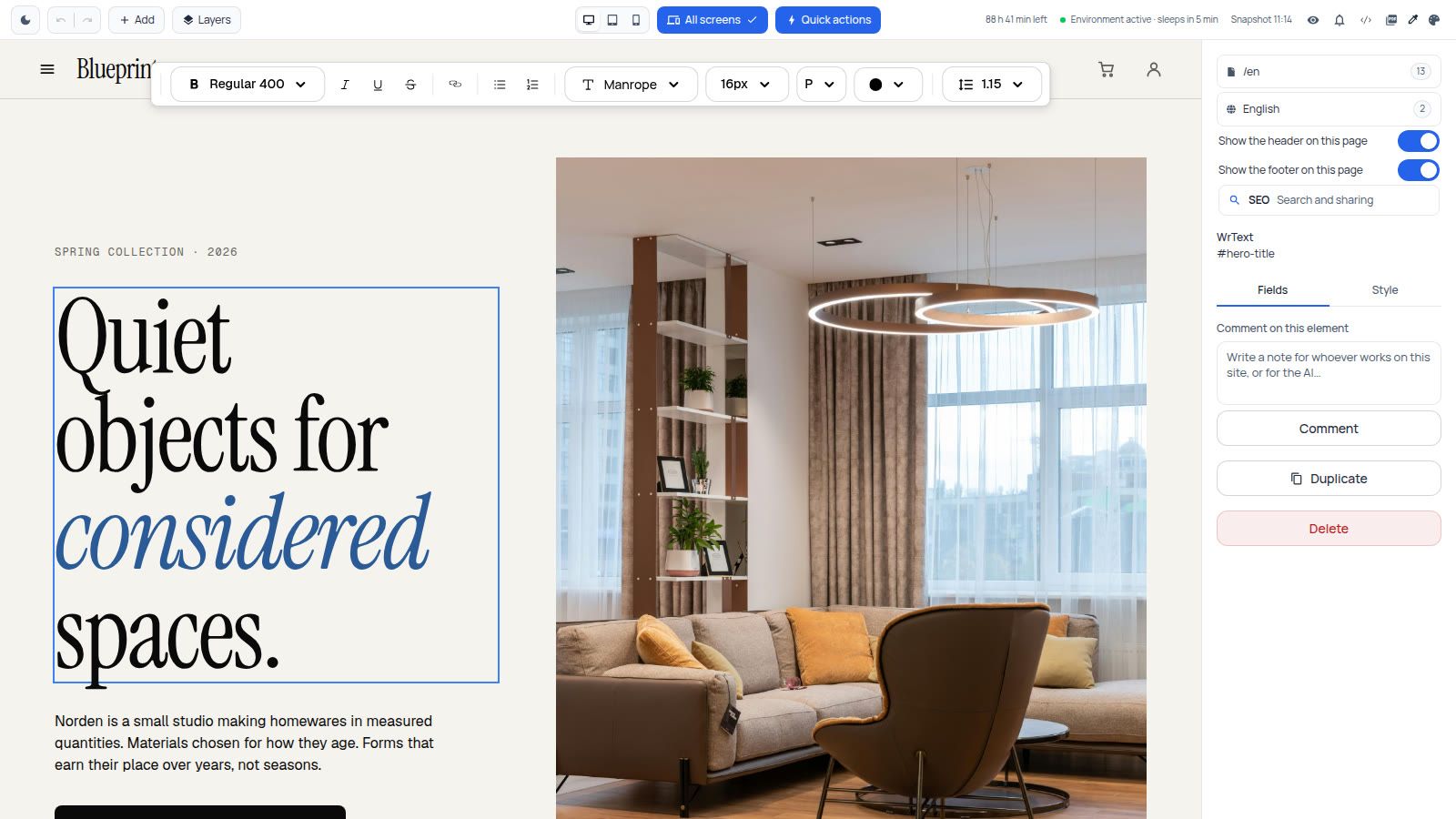
The editor with an element selected: the text toolbar, the fields and the comment on the element.
Styles, per screen and per state
The Style tab lets you define styles for Desktop, Tablet and Mobile and for each state: Normal, Hover, Focus and Pressed. Spacing, typography, colors, sizes and effects are grouped in panels, and an element's style can be copied and pasted onto another, or shared through a common class.
There are also quick buttons that appear when a component is selected. From there you can manage size, padding, margin and alignment.
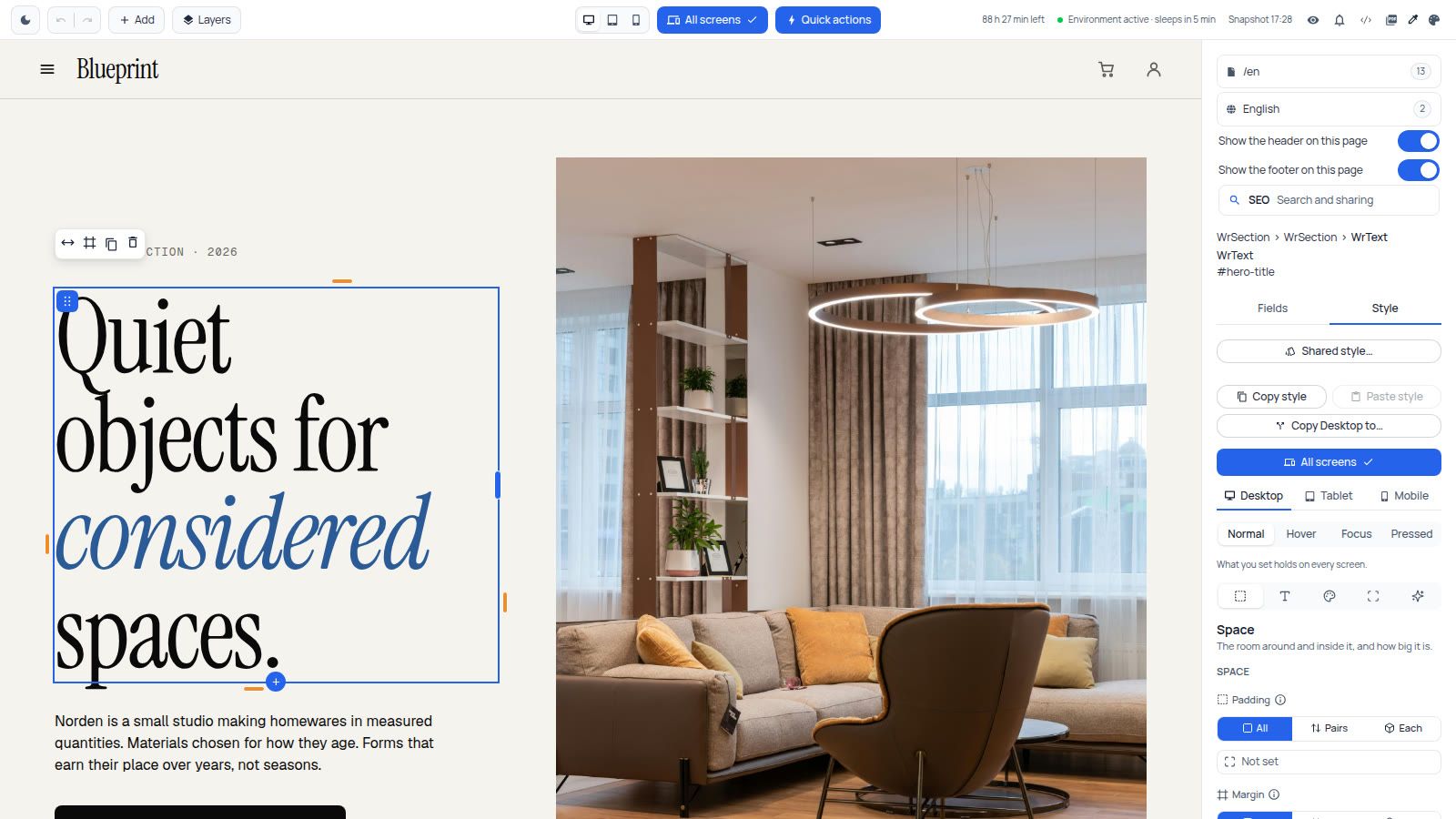
The Style tab: screen (Desktop, Tablet, Mobile), state (Normal, Hover, Focus, Pressed) and panels for spacing, typography, colors, sizes and effects.
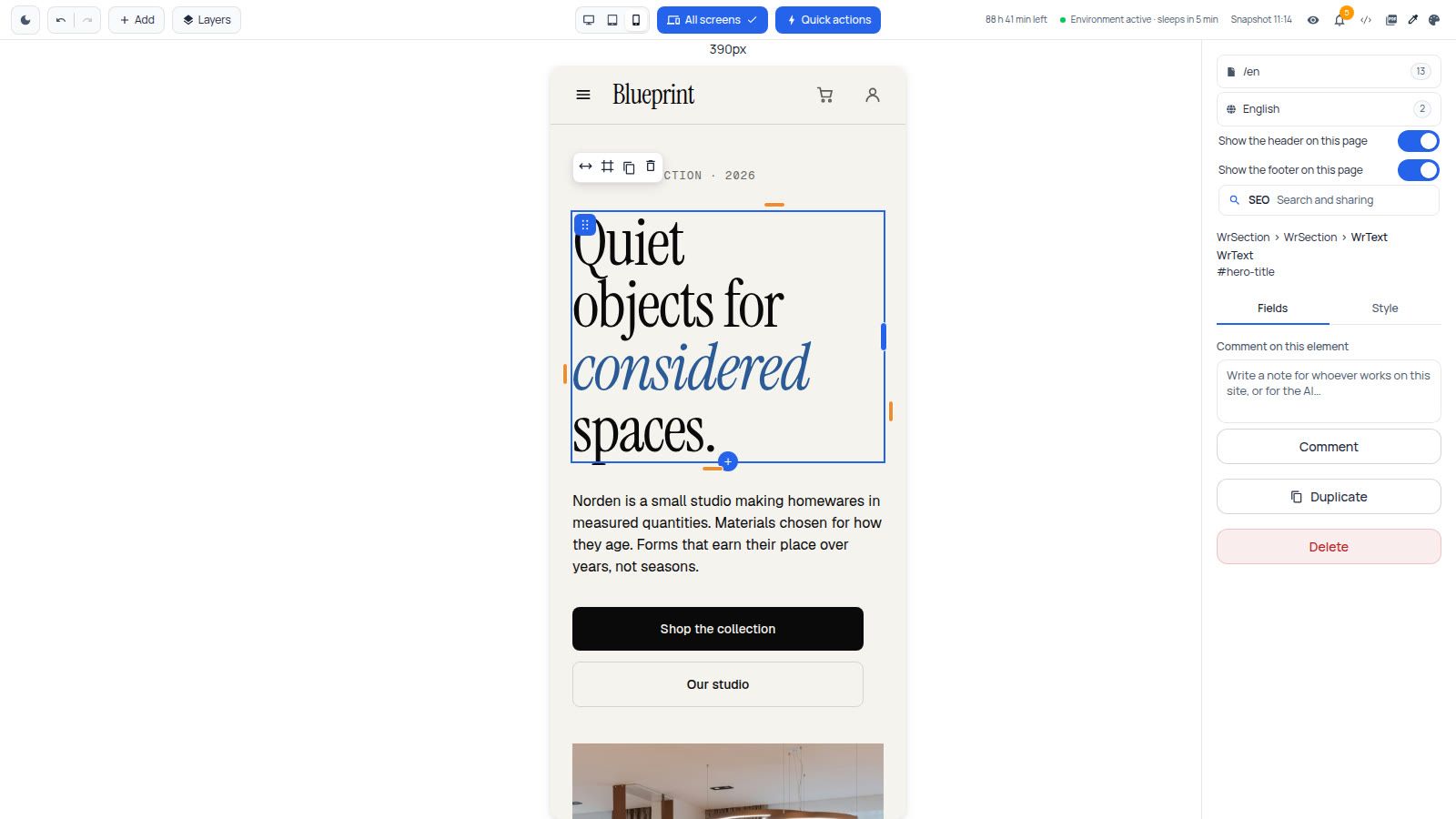
The same page in the mobile view, at 390 px.
SEO, for every page and every language
One of the flaws of Webround's original builder was SEO: cumbersome to manage and unclear. So I decided to rethink the whole SEO panel, now available on each page.
For each language, a title and a description are set, with a character counter and a preview of how they will appear on Google. The other tabs are Social (the preview when the link is shared), Site and Advanced, with a switch that hides the page from search engines.
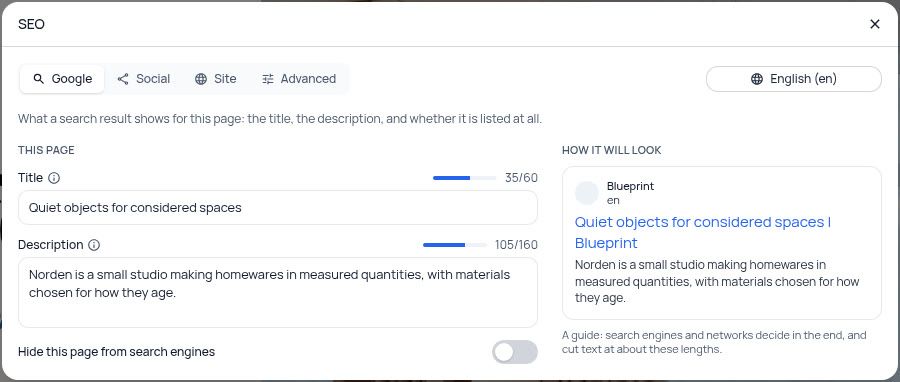
The SEO panel: title and description with the counter and the Google preview.
VS Code in the browser, for everything else
For what the editor does not cover, there is Open in VS Code in the header: it opens the same project in the browser. You can write components, install packages, change any file. Vite is already running, so every save shows at once in the editor. In the image, Home.tsx with the same Wr* seen in the editor.
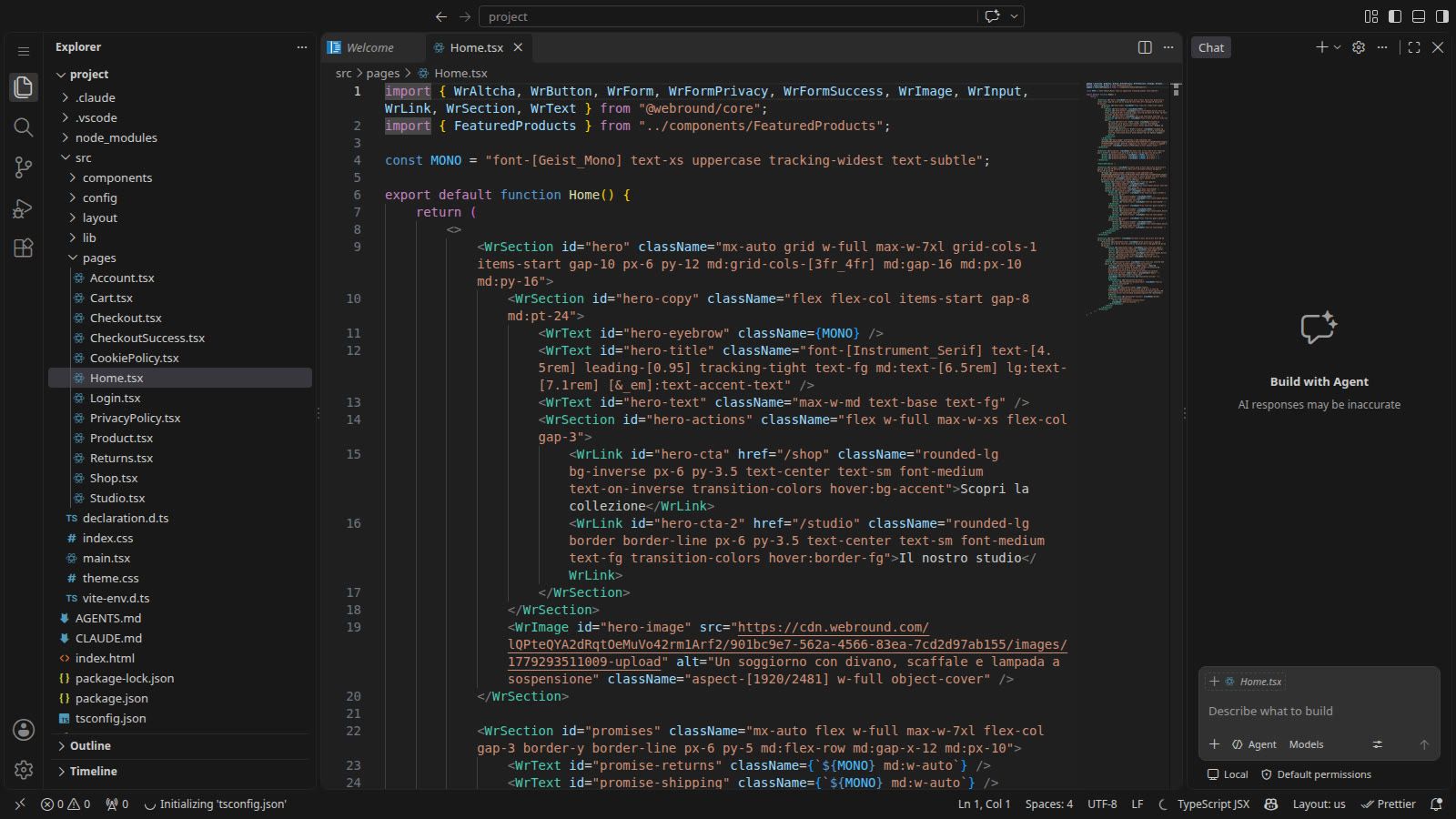
VS Code in the browser, on the same project: the hero element in Home.tsx is the one you see in the editor.
Claude and other AIs, through MCP
Since I still had unfinished business with an AI builder, I knew I had a real chance this time because everything was code. So I also integrated the MCP connector into the development container. To connect, all that is needed is the draft's address and an API key with the scope site:update.
For example, to connect Claude, a single command is enough.
claude mcp add --transport http webround-editor "https://<draftId>-render-v2.webround.net/__wr/mcp" \
  --header "Authorization: Bearer <API key>"
The server has 54 tools, the same ones the editor uses: it reads a page as a tree of elements (the real AST of the code), changes a section, writes the translations of a text, sets SEO and theme styles, reads and writes files, adds npm packages and much more. Every change goes through the same guardrails as the editor, and every draft contains a CLAUDE.md that explains the rules of the Wr* components to the AI. Some possible requests:
- Shorten the home page hero and move the call to action to the right.
- Translate the About page into English and French.
- Write the SEO title and description of every page.
The container also has the wr command: every tool of the MCP is a command with the same parameters, for example wr screenshot /about.
Comments: for collaborators and for the AI
Working with less technical people, I often received screenshots of site sections, circled by hand, with requests that were simple but hard to pin down in the old environment. So I immediately thought of a "comments" system that attaches text to a specific element of the site.
A comment can be left straight from the editor: the note is written, Comment is pressed and a marker appears on the element. There are two uses.
- For collaborators: the comment stays attached to the element it refers to, instead of ending up in a separate chat. Whoever opens the site sees what needs to change and where, and marks it Done when the work is finished. In other words: no more screenshots with hand-drawn highlights.
- For the AI: Claude can work on the open comments, reading them as a list of tasks to carry out. Once the tasks tied to the comments are completed, the comments can be deleted or marked as done.
Today, the same comment works both for the real user and for the AI: everything is much faster.
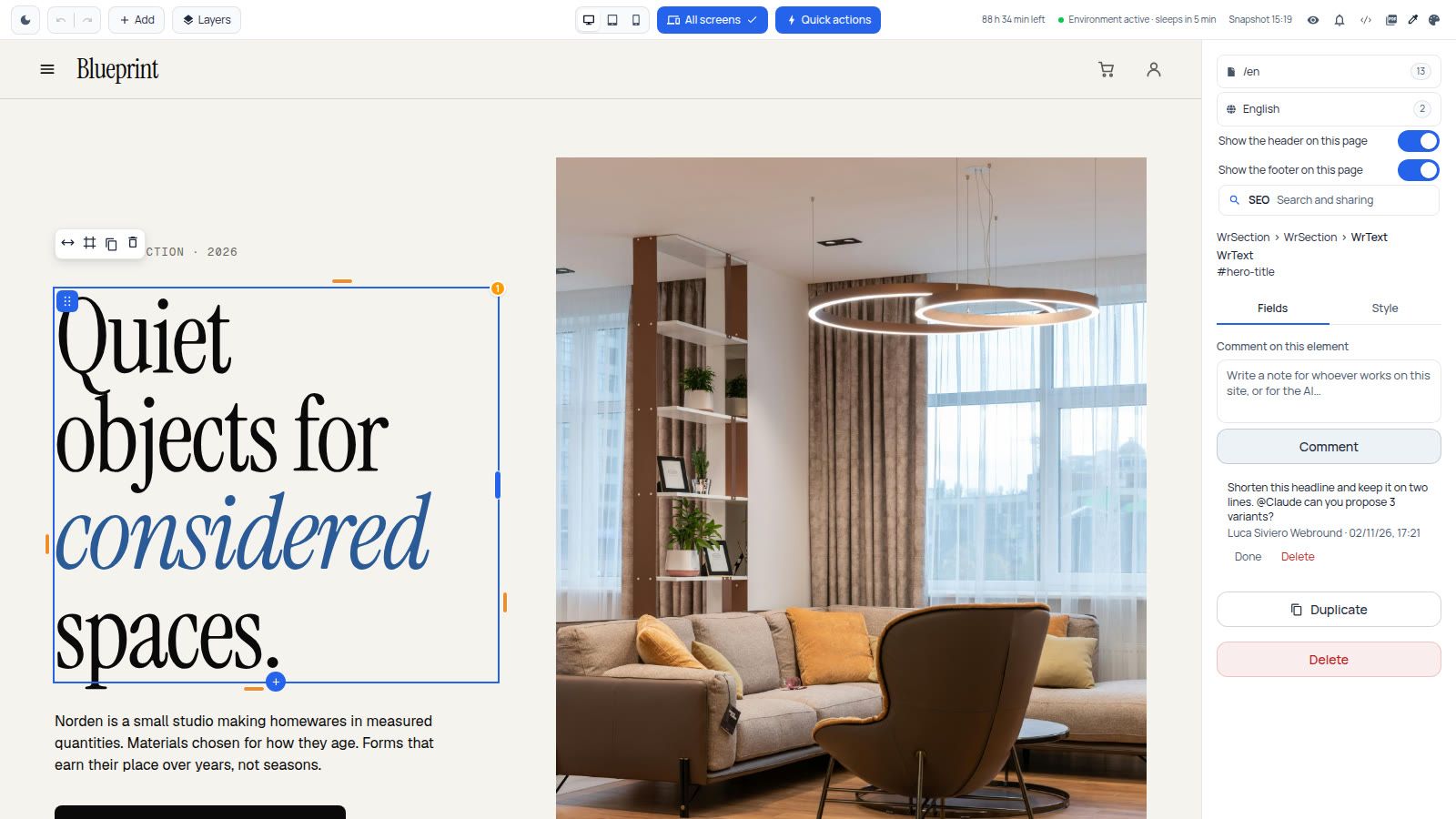
A comment left on the home title: it stays on the element until someone marks it Done or deletes it.
Accessibility: the editor's checks
Accessibility was a subject close to my heart. In previous years, with all the work I had to do, I always tended to postpone accessibility work and, even when I made the effort, I often left gaps because I had no reliable reporting system. So I decided to take the chance to make sure no Webround user needs an external accessibility report, by integrating an alerting system for WCAG and SEO practices, so that Webround users always have the "less visible" details of their site under control.
The editor checks the site during the work and reports problems as notifications: images without alt text, headings out of order, links and buttons with no name, fields without a label, and what can only be measured on the rendered page, such as WCAG AA contrast (4.5:1) or clickable elements under 24 px.
The same checks are MCP tools (check, inspect, diagnose), so an AI can verify the work done: it reads the errors or missing accommodations for users of assistive technologies, so the problem is fixed even before going live.
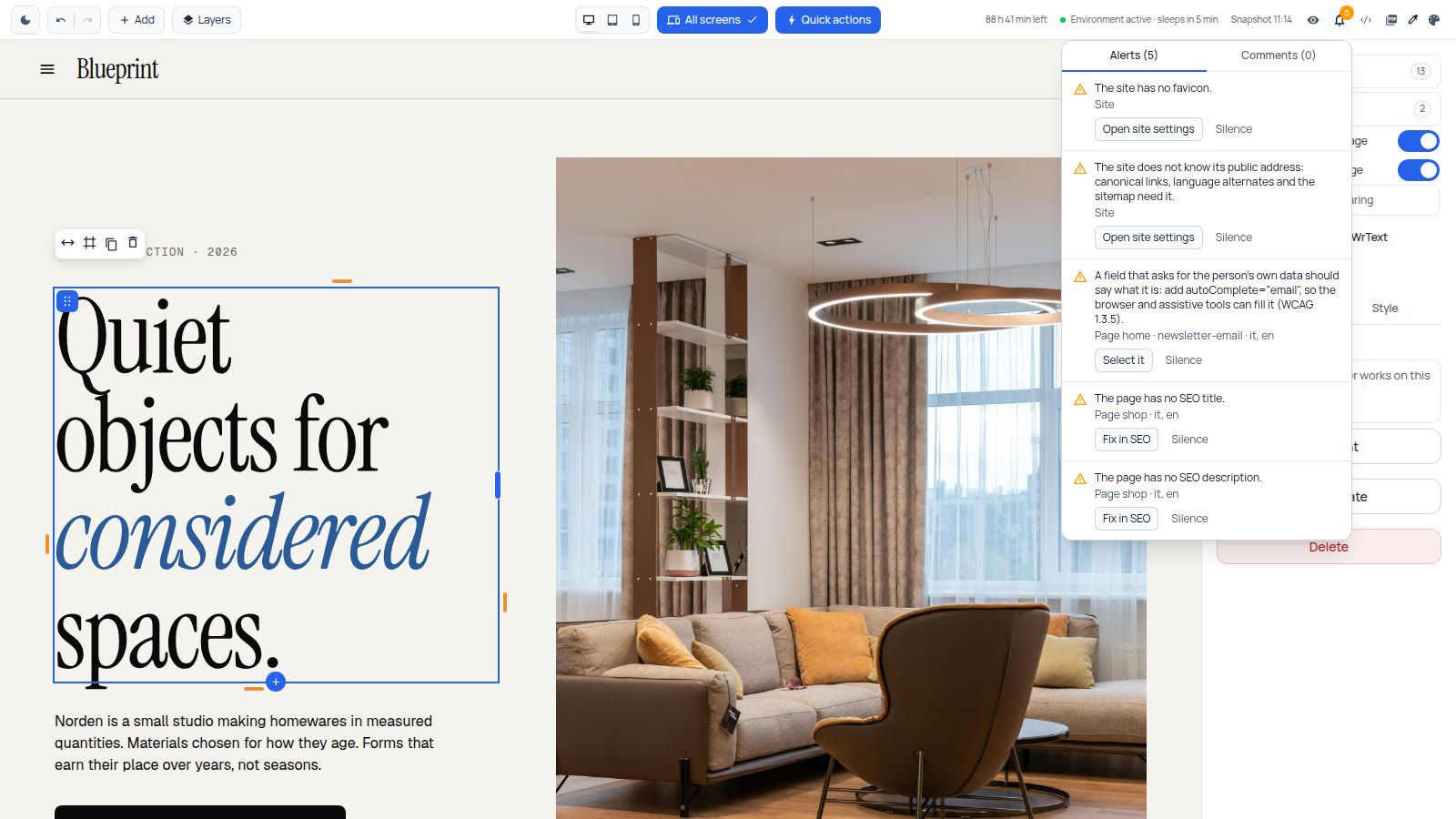
The alerts panel: favicon, public address, a field without autocomplete (WCAG 1.3.5) and missing SEO.
The news does not stop here
The last few months have been really full of work, and this is the result. Basically, the editor has been revolutionized, but the latest Webround releases are not only about the editor and the front end. There is much more, also about Webround Commerce.
Stay tuned for the next articles to learn more.
How to start
To use the new editor, follow these steps.
- From the Webround dashboard, choose a template and go ahead with Create draft.
- Open the draft and give it a few seconds: the container starts, with Vite and VS Code.
- For code, open the section at the top right to access VS Code.
- For AI, create an API key with the scope
site:updatefrom the "Manage integrations" panel in the Webround dashboard. Then ask your favorite AI to set up the connection. - Work on the site and, when finished, click Publish (it requires a Webround Sites subscription) or publish a 48-hour preview from the Backup tab.
The documentation is fully available at docs.webround.com, in the Quickstart and MCP sections. The editor remains the fastest way to make everyday changes; everything else is the project's own code.